In mobile repair, bringing a “dead mobile phone” back to life is a big challenge but also very beneficial. When a phone doesn’t turn on, it could be due to a software crash or a hardware problem. This guide will show you simple steps that expert technicians use to fix dead mobile phones.
Mobile Hardware Repairing: The Heart of the Solution
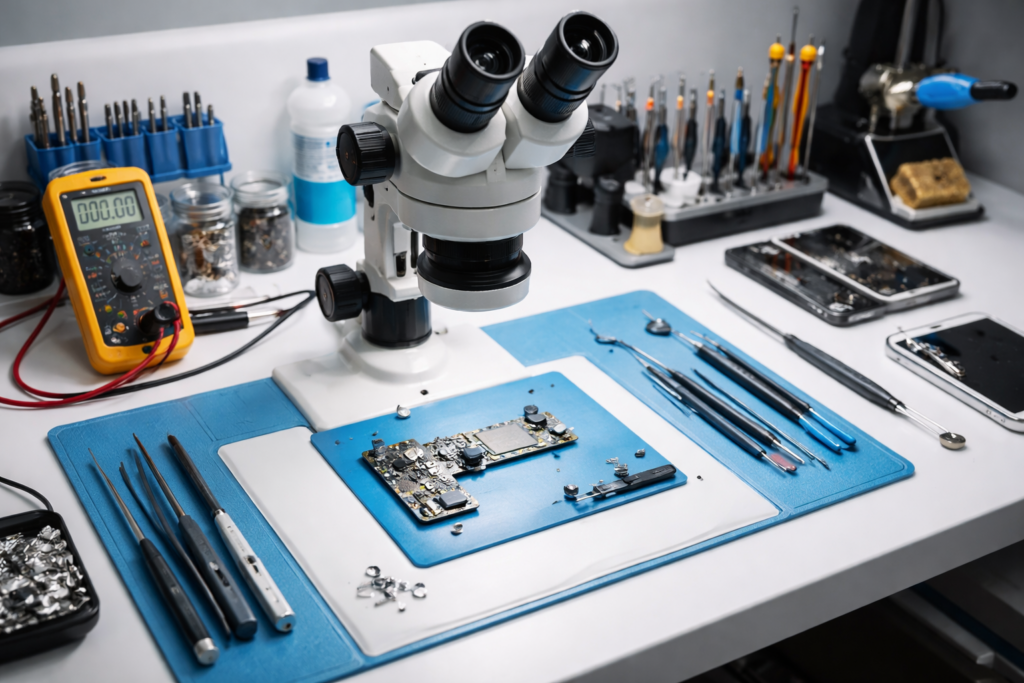
Before we dive into the technical steps, it is important to understand that Mobile Hardware Repairing is like solving a puzzle. Most people think a dead phone is “garbage,” but for a skilled technician, it is often just a simple connection or a tiny component waiting to be fixed. By learning how the hardware works, you move from just guessing to actually knowing what is wrong. In the next few sections, we will show you how to check everything from the battery to the internal chips, giving you the power to fix devices that others might give up on.
What is a Dead Mobile Phone and Why Does it Happen?
A dead mobile phone is a device that displays no signs of activity or power life. This means the screen stays black, it doesn’t vibrate when you hold the power button, and it doesn’t show a charging icon when plugged in. For many people, this is a scary situation because they fear losing their photos and contacts. However, in mobile hardware repairing, a dead phone is just a device with a broken link in its power chain. Understanding “why” a phone dies is the first step toward fixing it. There are usually two main reasons: hardware failure or software corruption.
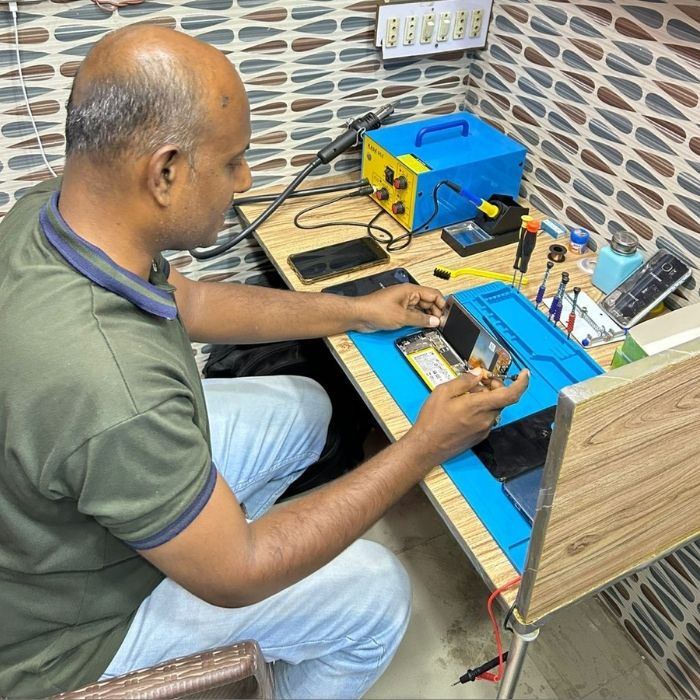
Hardware failure happens when a physical part inside the phone stops working. This could be due to a dropped phone, water damage, or a component like the Power IC simply wearing out. On the other hand, a software-related dead phone happens when the phone’s operating system gets corrupted. In both cases, the phone looks the same—completely lifeless—but the repair methods are very different.
As a technician, your job is to act like a doctor. You must diagnose the “dead mobile phone” by checking its heartbeat, which is the electrical current. In the following steps, we will teach you how to handle these situations like a professional.
Initial Check: Battery and Charging Port
Before opening any dead phone, always start with basic checks. Sometimes, a mobile phone is dead just because its battery is totally empty.
Check Battery Voltage: Use a digital multi-meter to check the battery. If it’s less than 3.7Volt, you might need to “boost” the battery to give it a quick charge by 12volt DC adopter with 1 ampere.
Check Charging Current: Use a 6 port USB charger. If the phone takes 0.0A or very little current, the problem could be with the charging port or the charging IC.
Power Button: See if the voltage drops when you press the power button or not.
Advanced Hardware Test: Finding Shorts and Power IC Issues
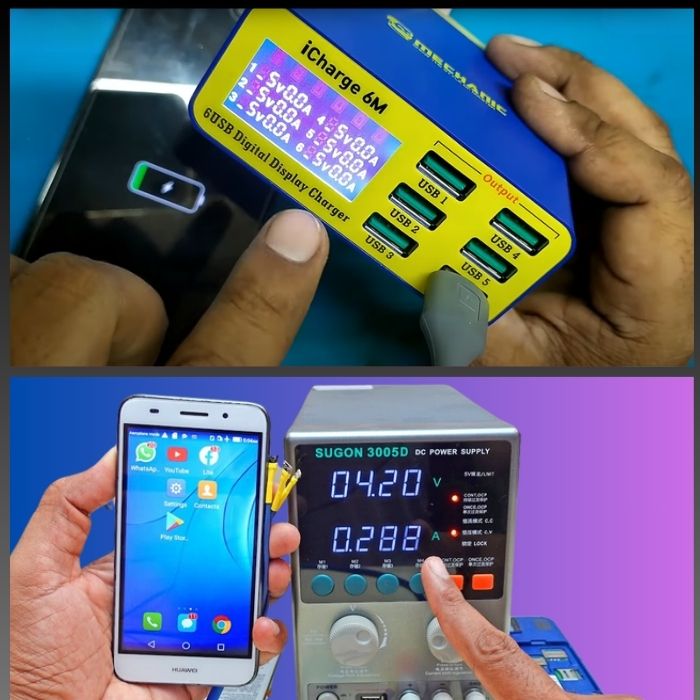
If the battery is okay, the next step is to check for short circuits on the mobile phone motherboard. A 5 Ampere DC Power Supply is best for this.
Full Shorting: If the power supply shows 0000 on voltage and ampere both meters as soon as you connect the battery, there’s a full short on the phone motherboard.
Half Shorting: If the phone uses more current than normal when you connect to power supply and turn it on, or if it gets hot, it’s a sign of a half short.
Power IC and CPU: If there’s no ampere reading on the DC supply when you press the power button, you need to check the voltage come out from the Power IC (PMIC). Understanding the circuit diagram is very important here.
Software Solutions: Using Flash Files
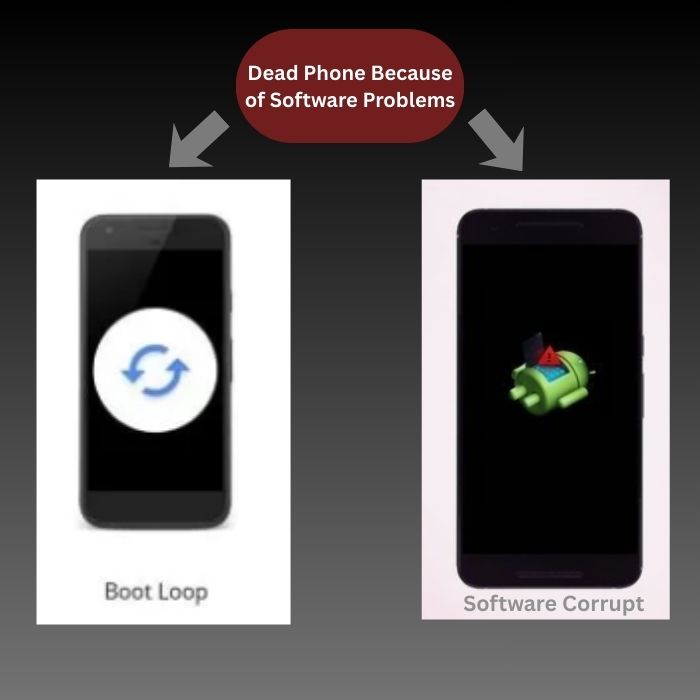
Sometimes, mobile phones die not because of hardware, but because of software corrupt, which is called a “Dead Boot.”
Phone Computer Detection: Connect the phone to a computer and check “Device Manager.” If the computer shows “Qualcomm USB Port,” or “MTK USB Port,” it means the hardware is fine, and you just need to flash the phone with new firmware file.
Flashing Process: Choose the correct flash file and tool (like SP Flash Tool or Odin). Using the wrong file can damage the phone permanently.
Conclusion:
Start bringing Dead Phones back to life seem difficult at first, but by following a step-by-step process, anyone can learn to do it. Always remember to start with the easiest things first—like checking the battery and charging port—before moving on to complex motherboard repairs or software flashing.
The secret to becoming a pro technician is patience and the right resources. Whether it’s a simple hardware problem fixing or a software flashing, having the right diagrams and guides makes all the difference. Don’t be afraid to practice mobile hardware repairing soon you will be able to solve even the most difficult “dead phone” cases.